
Before you begin
This guide shows you how to create a reusable weekly music schedule for a Beat Breeze zone.
The quickest path is to brief Music Director with the opening hours and daypart direction, review its proposal, and apply only when the week looks right. Nothing changes in the zone before you choose Apply.
For precise manual control, you can instead start from a typical day, describe a starting pattern, or begin with a blank weekly grid.
You will need
- An existing zone if you want the finished schedule assigned immediately.
- The zone's opening hours and the atmosphere you want across the day.
- Permission to create schedules and change music for the intended zone.
Video tutorial
How to Create a Weekly Music Schedule in Beat Breeze
Watch the walkthrough, or continue with the complete written steps below.
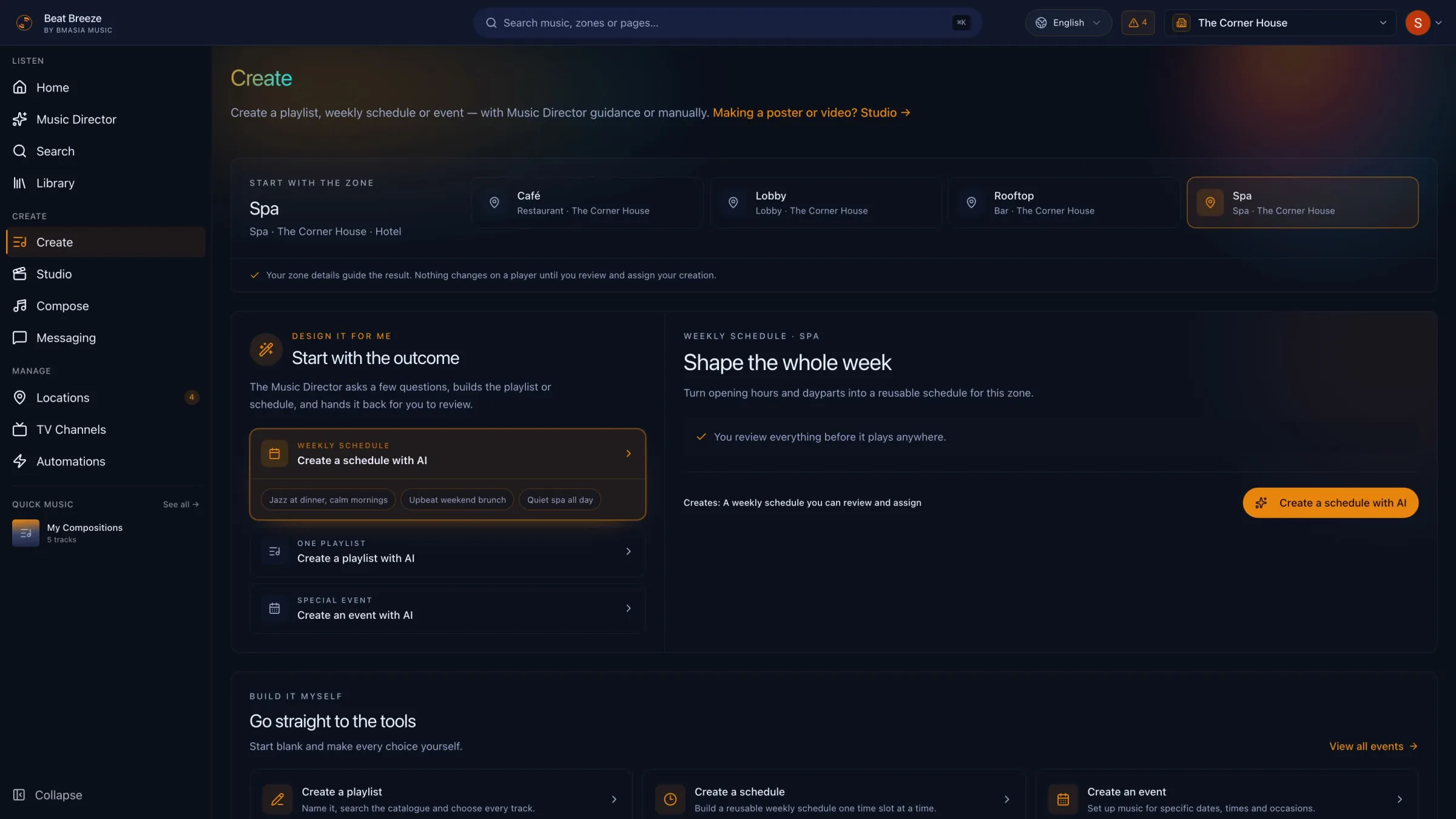
Open Create and choose the zone
Open Create in the dashboard. Under Start with the zone, select the space whose operating week you want to plan.
The example uses Spa, but any existing zone works. Choosing the zone gives Music Director the correct venue context and makes the final assignment explicit.
Describe the operating week
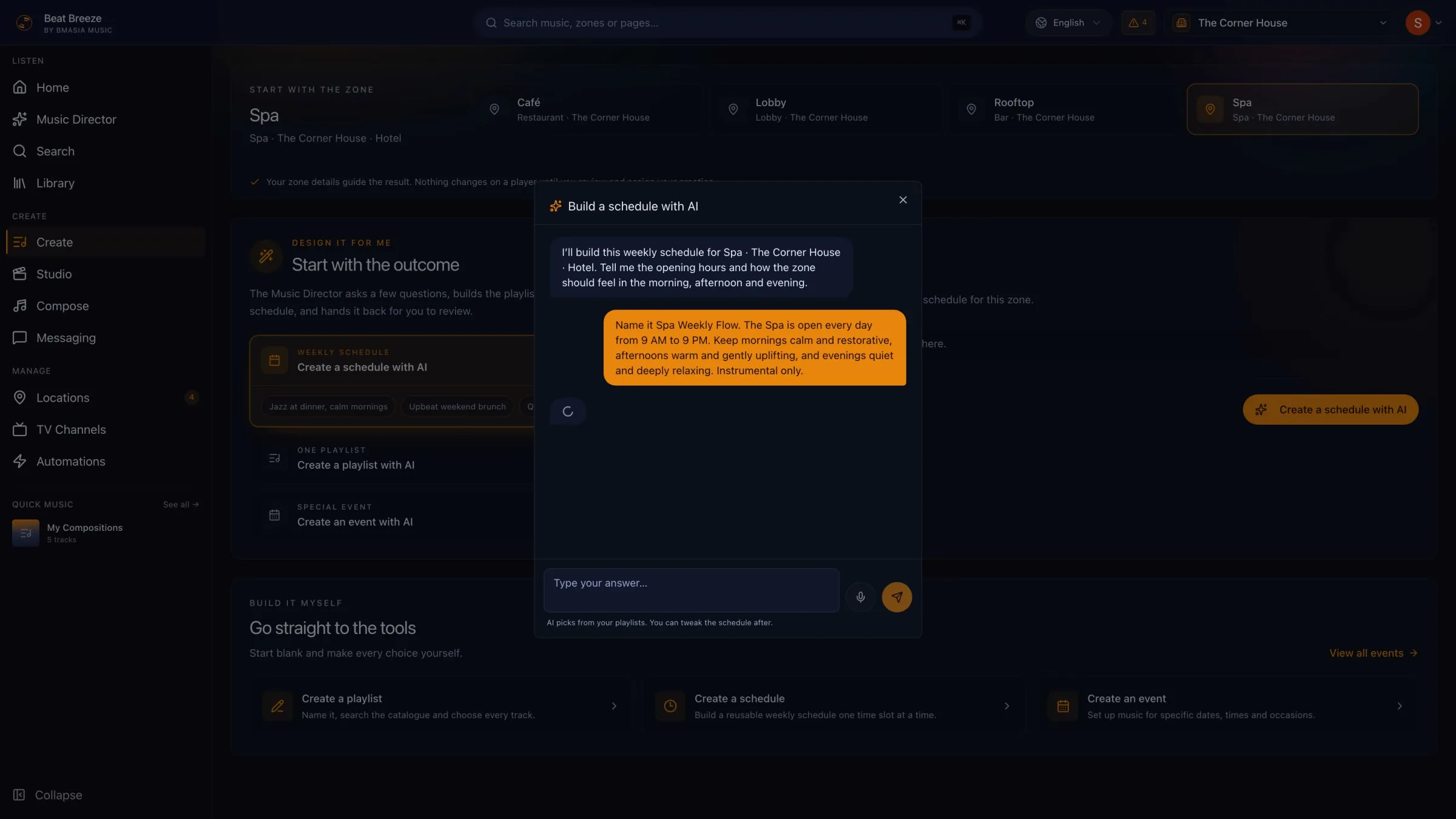
Choose Create a schedule with AI. Tell Music Director the opening hours and how the zone should feel in the morning, afternoon, and evening.
Include any useful boundaries such as instrumental only, different weekend hours, quieter late periods, or a preferred schedule name.
- Name or purpose of the schedule.
- Days and opening hours.
- Desired energy or atmosphere for each daypart.
- Any music, vocal, or venue restrictions.
Review the proposal before applying it
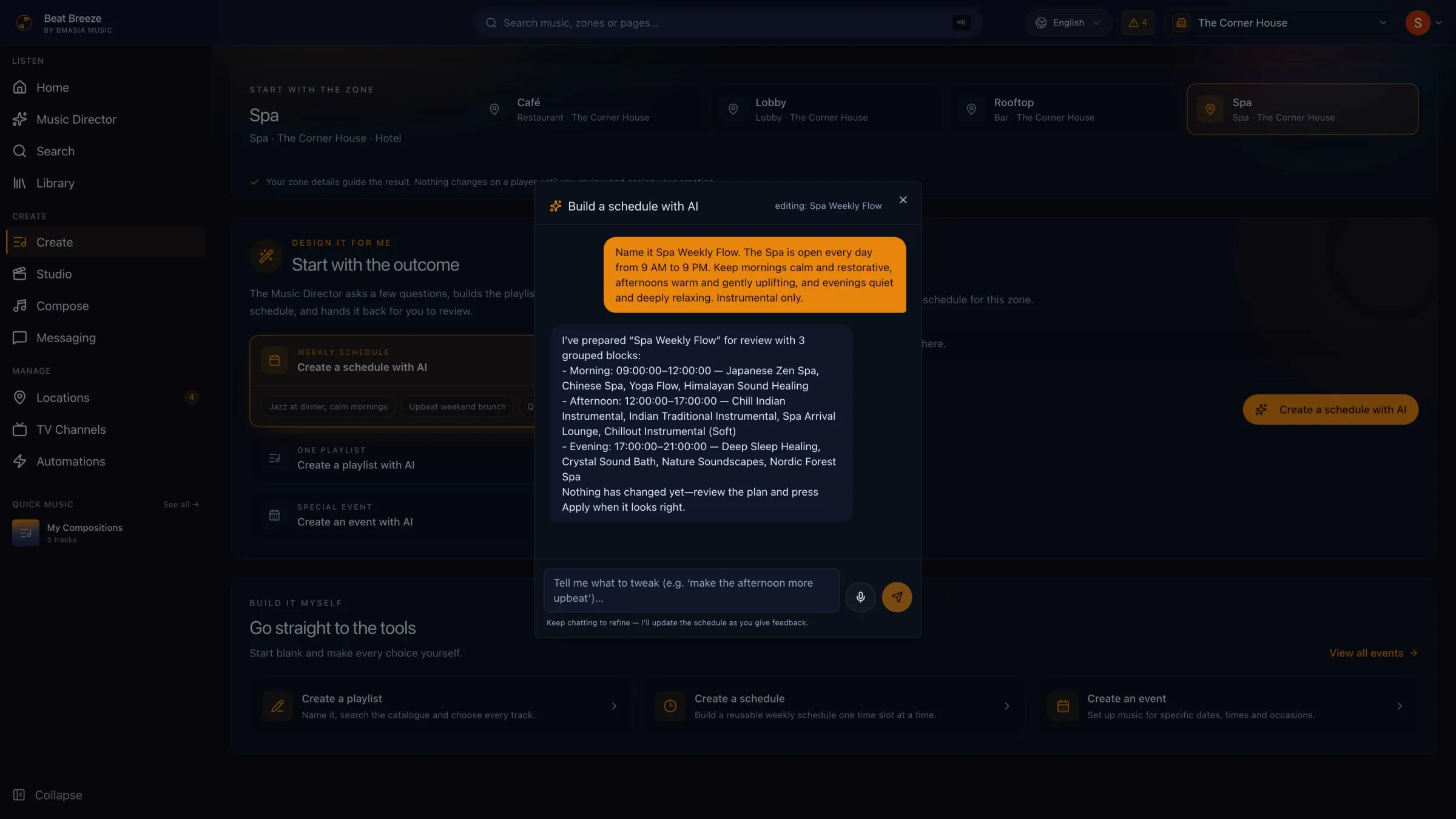
Check the proposed schedule name, days, times, playlists, and destination zone. Continue the conversation if any part needs to change.
Choose Apply only when the proposal matches the operating week you intend to run.
Open the saved schedule in the editor
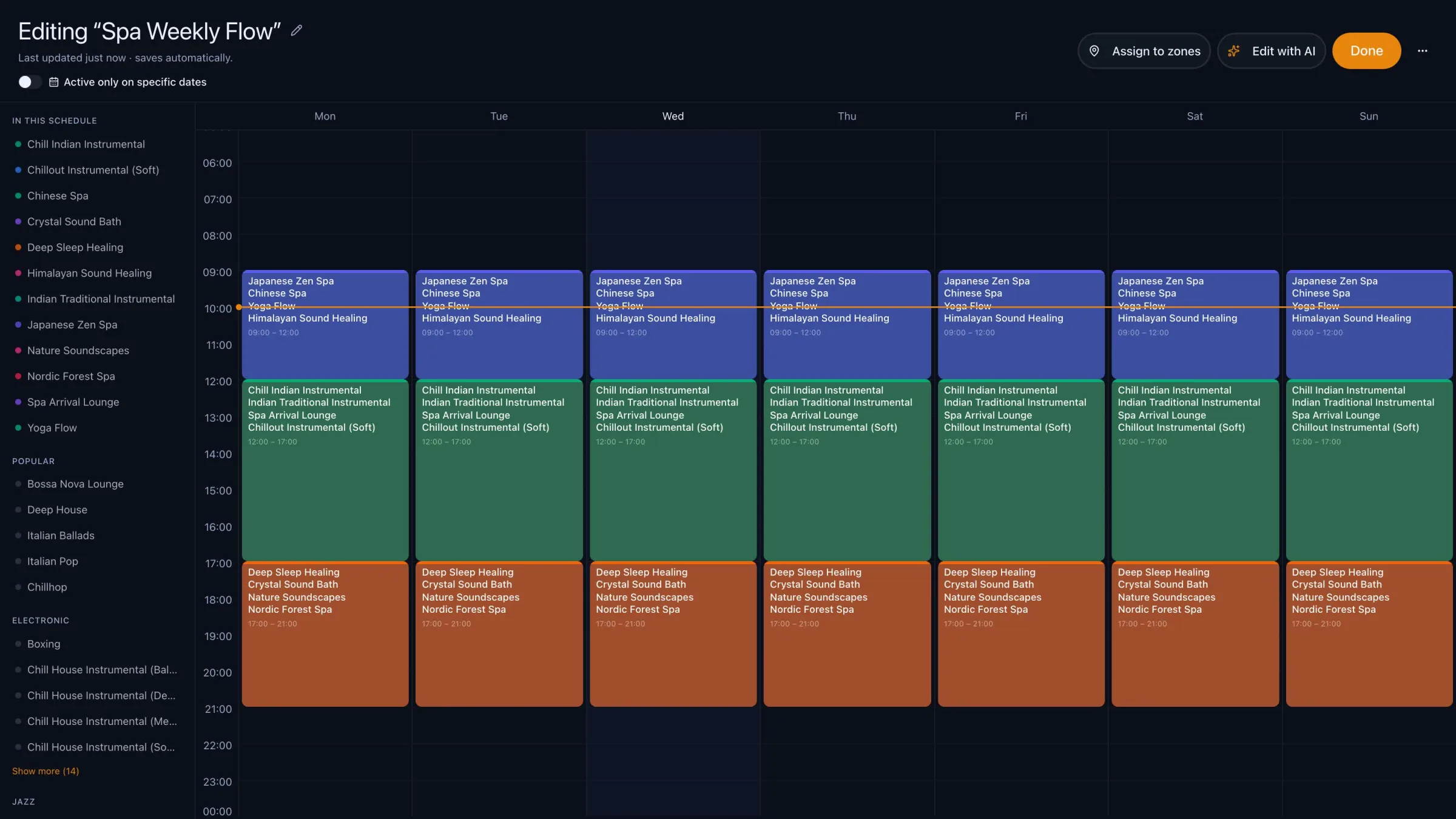
After Apply, the Music Director header changes to editing the saved schedule. Use Open editor on the result, or close Music Director and open Library, then Schedules, and select the schedule by name.
The weekly grid remains fully editable. You can rename the schedule, adjust time blocks, replace playlists, copy a day, and change the zones assigned to it.
Use the manual path when you want precise control
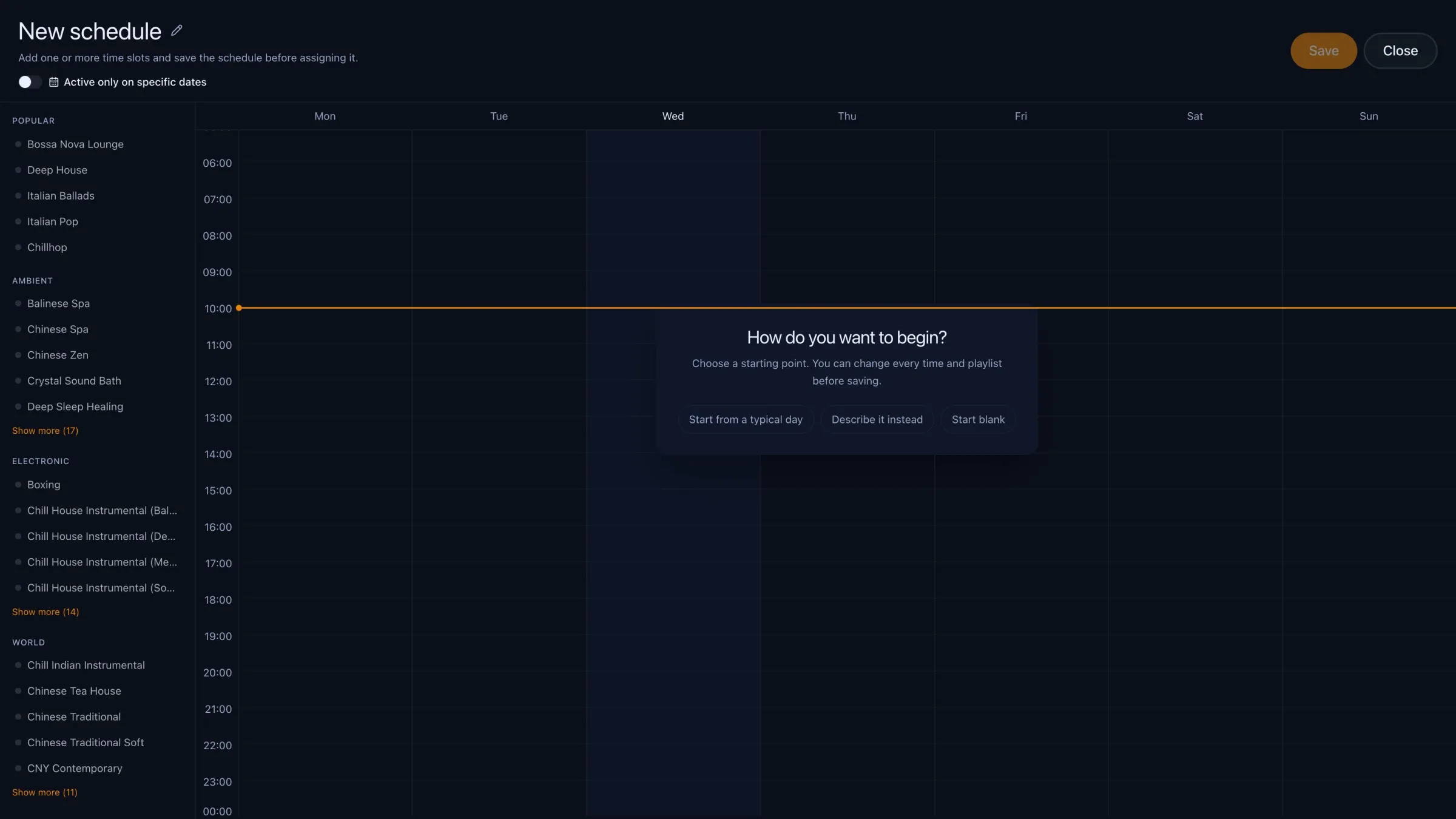
Return to Create and, under Build it myself, choose Create a schedule. The editor offers three ways to begin before you add or adjust individual time slots and playlists.
- Start from a typical day to establish one daily pattern you can expand across the week.
- Describe it instead to turn a written pattern into a starting grid.
- Start blank to make every time slot and playlist choice yourself.
Confirm the zone follows the schedule in local time
Schedule times are interpreted using each assigned zone's location timezone. Check the opening and closing blocks against the venue's local operating day.
Open the zone's Control room and confirm the new schedule is its automatic source. If the player is online and the current local time falls inside an active block, it should receive the playlist for that block.
Confirm it worked
What success looks like
- The schedule appears in Library under Schedules with the intended name.
- The weekly grid contains the correct local days, time blocks, and playlists.
- The intended zone shows the schedule as its automatic music source.
- Every part of the schedule remains editable after it is applied.
Troubleshooting
The zone is not available on Create
Confirm that the zone exists and that your team access includes it. Ask an account owner or admin to update access if the zone belongs to another location or team scope.
The proposal does not match the opening hours
Do not choose Apply yet. Tell Music Director the exact days or times that need correction, then review the revised proposal again.
The schedule is saved but the zone is playing a different playlist
A direct playlist may be temporarily overriding the recurring schedule. Open the zone and choose Back to automatic, then confirm the intended schedule is selected.
The zone is silent during a scheduled block
Confirm the venue's local time, the active time block, its playlist, player connection, and volume. Then use Why is nothing playing in the Control room to identify the blocking condition.
Tell us what is happening in your venue
Include the location, zone, player type, and the last step you completed. That gives our support team a useful starting point.
Contact Beat Breeze support