
Before you begin
Use an installed Beat Breeze Player app whenever the venue device supports one. The Web Player is the browser option for devices where an app cannot be installed or for a temporary setup.
Pairing links one browser to one zone without signing the venue device into your dashboard account. Keep the browser awake with the Player in front during venue playback.
The pairing code and QR are single-use and valid until the first successful pairing. Use either method, not both.
You will need
- A Beat Breeze account with access to the location and zone.
- A venue device where installing the iOS, Android, or Windows Player app is not the better option.
- A modern browser on the device connected to the venue speakers.
- Music already assigned if you want playback to begin as soon as pairing finishes.
Open Locations and select the zone
In the Beat Breeze dashboard, open Locations. Choose the location, then select the zone that will use this browser as its player.
The selected zone opens in its Control room. Check that the zone name matches the room where the device and speakers are installed.
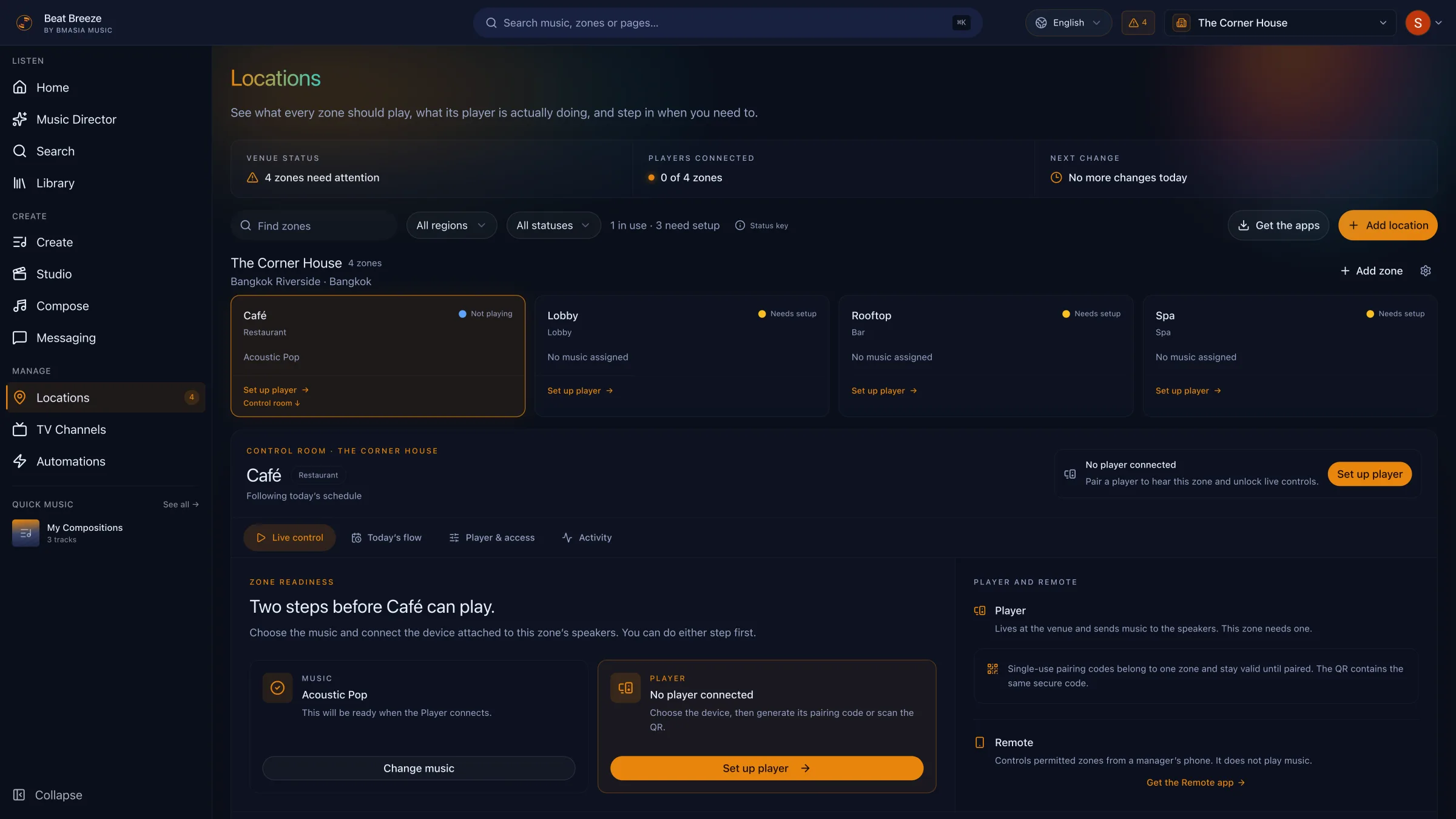
Open the zone's player setup
Choose Set up player in the zone card or the player panel. If the zone already has a player, open Player & access and choose Pair a player instead.
The dashboard asks where this zone will play. This choice describes the venue device, not the computer you are using to manage the dashboard.
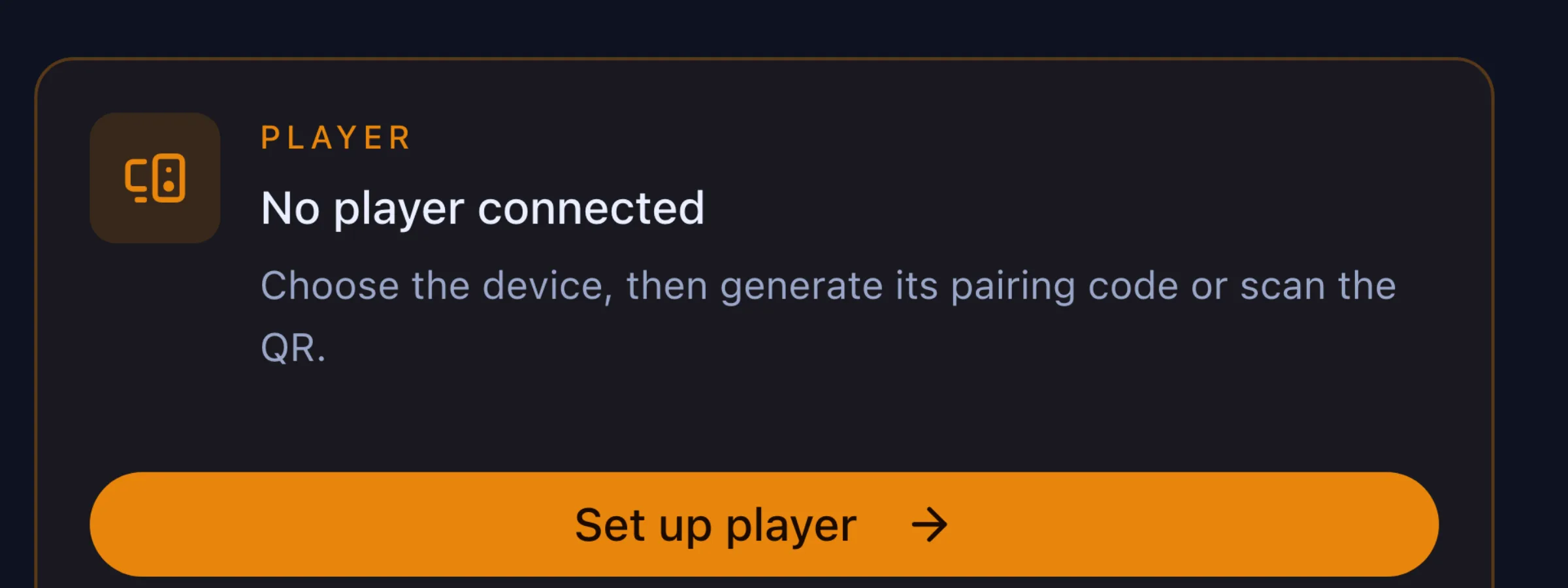
Choose Web player
In the pairing panel, choose Web player, labelled Any browser. Beat Breeze shows the player address and creates a single-use pairing code with a matching QR.
Leave this panel open while you move to the venue device. If you are working with someone on site, Copy link or Send link can help them open the correct player page.
Open the Web Player on the venue device
On the device connected to the speakers, open beatbreeze.io/player. You do not need to sign in to the dashboard on this device.
The player screen asks for the pairing code. It also explains the three-part flow so venue teams can finish setup without access to the account.
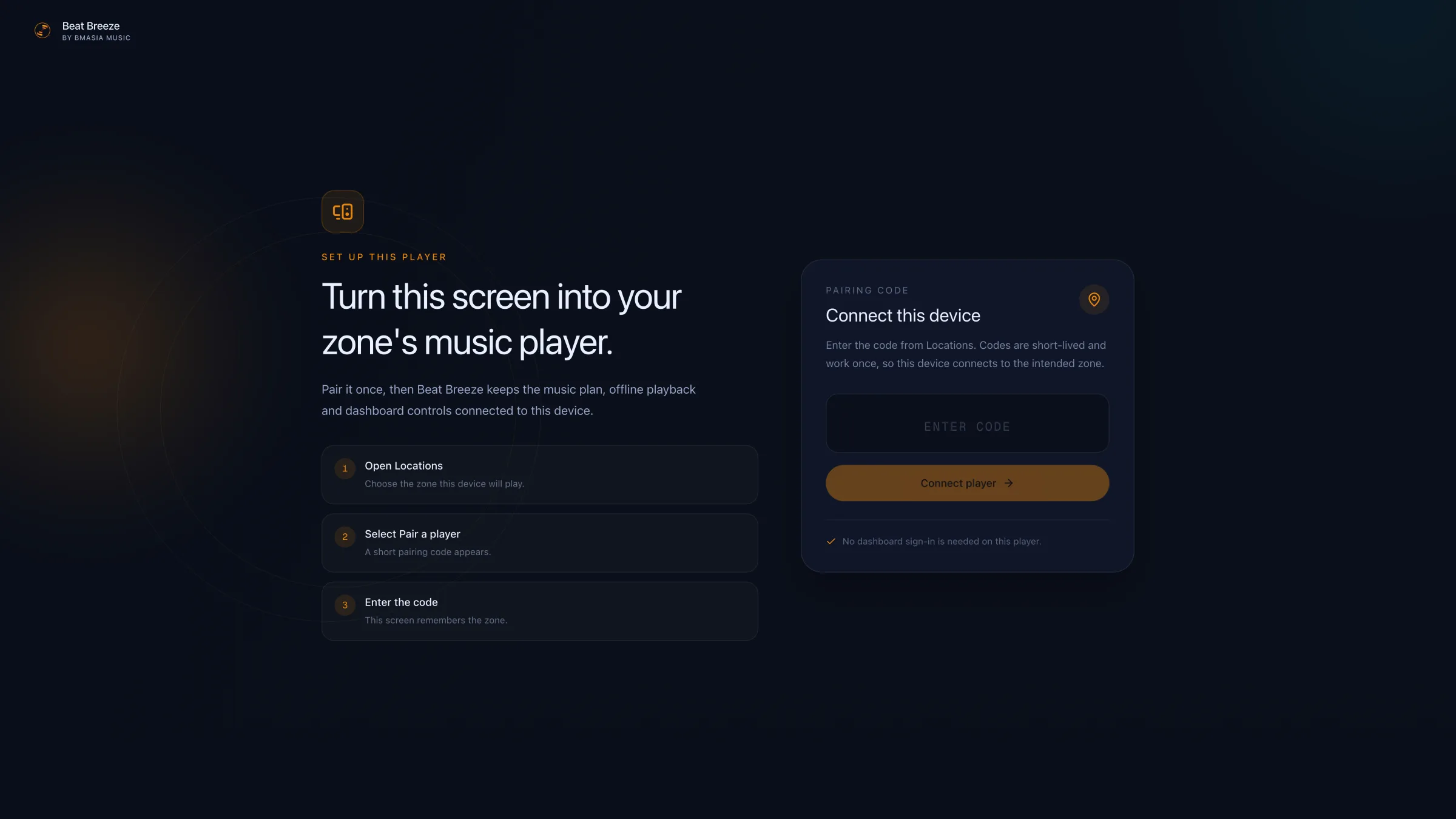
Enter the code and connect
Type the code from the dashboard into Pairing code, then choose Connect player. If the venue device can scan the QR, that completes the same pairing without typing.
Keep the browser awake and the player in front. On iPad, use Safari and add the player to the Home Screen for a more appliance-like setup.
Confirm the player and dashboard agree
The venue device should move to the full-screen player. If music is already assigned and the zone is within its scheduled hours, playback can begin after the connection settles.
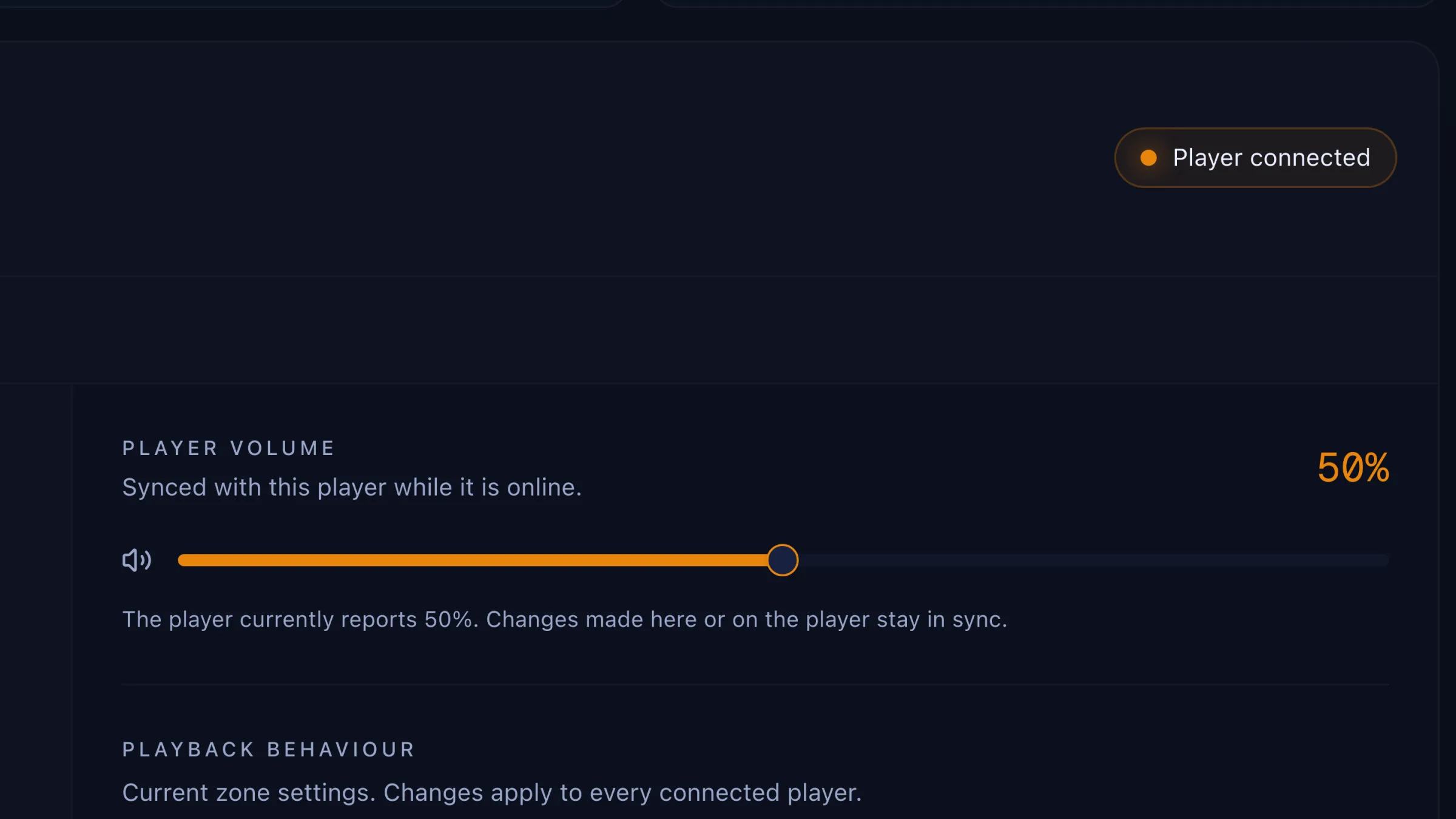
Return to Locations and confirm the zone shows Player connected. The Control room should now expose playback and volume controls for that player.
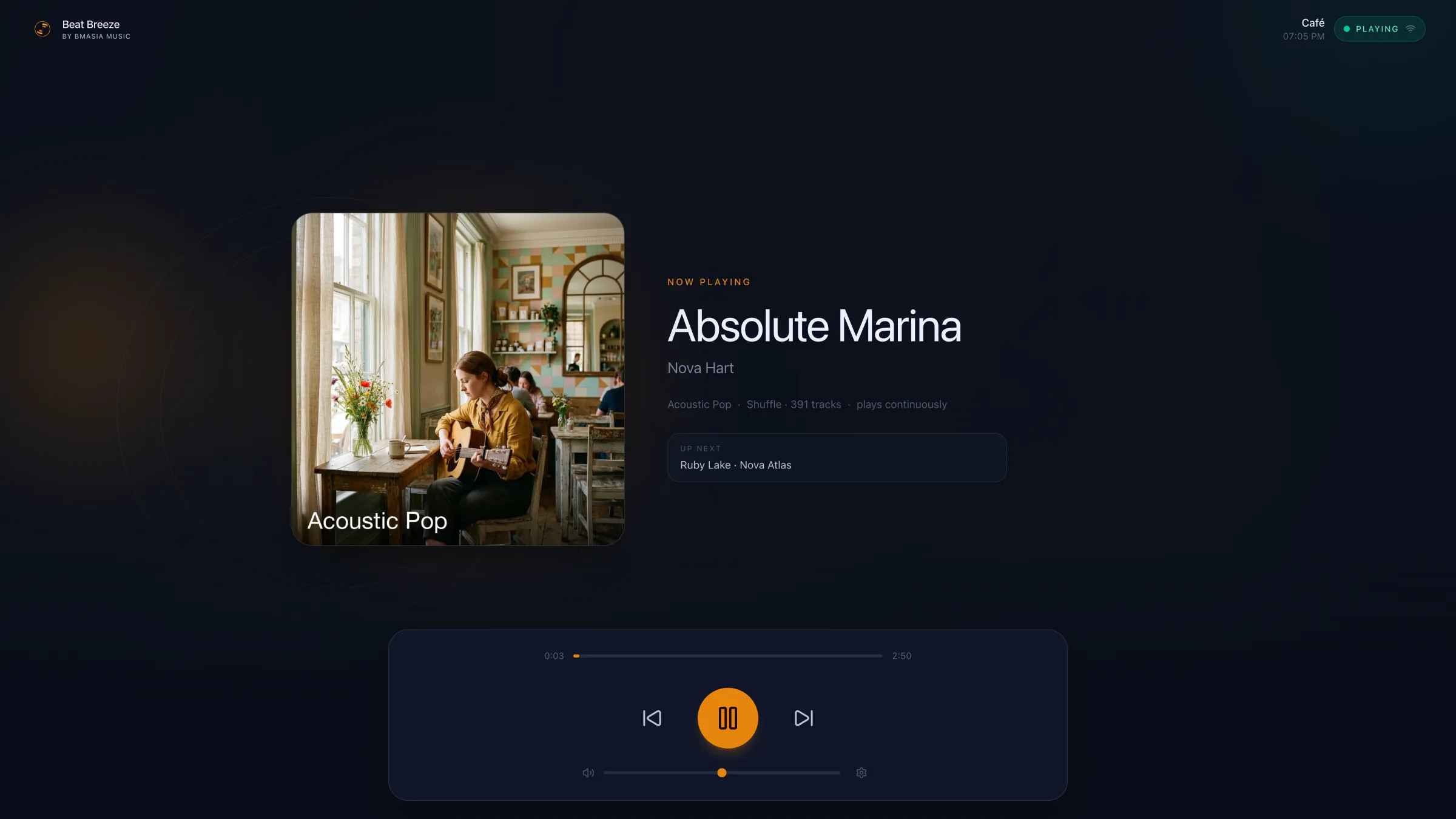
Check the connected zone in Locations
The final check belongs in the dashboard. Open the same zone and confirm that Player connected appears, the expected music is ready, and the volume control reports a value from the venue player.
Confirm it worked
What success looks like
- The venue device shows the full-screen Beat Breeze Web Player for the intended zone.
- Locations shows Player connected for that same zone.
- If music is assigned and currently scheduled, the player shows the expected playlist or track.
Troubleshooting
The code is rejected
The code may already have been used by another device. Return to the pairing panel, generate a new code, and enter it on the intended venue device.
The player connects but no sound starts
Confirm music is assigned, the current time is inside the zone's schedule, and the player volume is above 0%. Also check the browser for Tap to start sound, which needs one user gesture.
The player says it is already playing in another window
Close the other Beat Breeze Player tab or window on that device, then return to the player you want to keep in front.
The dashboard says the player is offline
Check power and internet at the venue, then reopen Beat Breeze Player. An offline player may still be playing downloaded music, so confirm what the room can actually hear before restarting it.
Tell us what is happening in your venue
Include the location, zone, player type, and the last step you completed. That gives our support team a useful starting point.
Contact Beat Breeze support