
Before you begin
The Player is the audio source that stays at the venue. Install the Beat Breeze Player app whenever the device supports it because a dedicated app is better suited to continuous playback than a browser tab.
Player apps are available for iPhone, iPad, Android, and Windows. Use the official store links from Beat Breeze so the venue device gets the correct Player rather than the manager Remote app.
Beat Breeze Remote has a different job. It lets a manager control permitted zones, but it never sends music to the speakers.
You will need
- Dashboard access to the location and zone.
- A dedicated venue device connected to the sound system.
- Permission to install an app from the device's official store.
Video tutorial
How to Connect a Player in Beat Breeze
Watch the walkthrough, or continue with the complete written steps below.
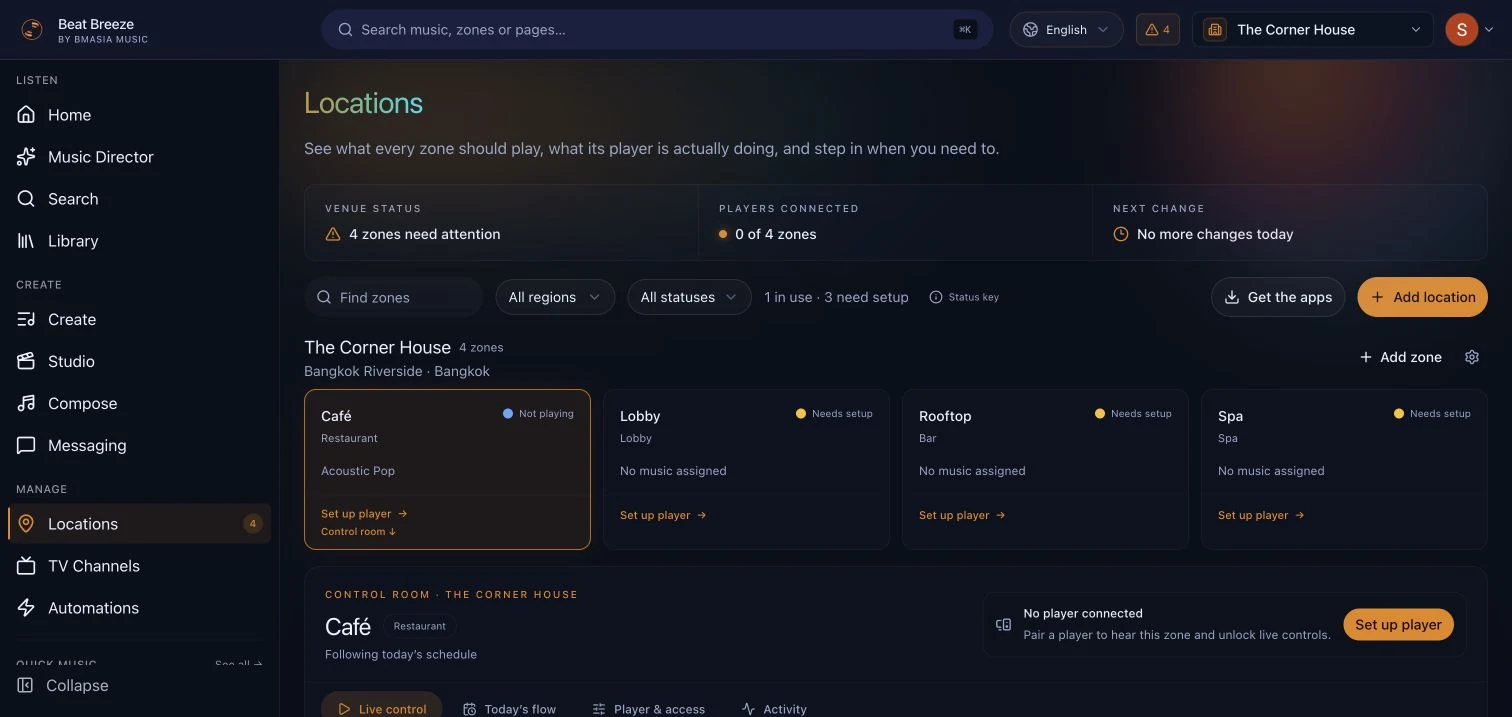
Open Locations and choose Get the apps
In the Beat Breeze dashboard, open Locations and choose Get the apps. This is the safest route to the current official Player downloads and availability notes.
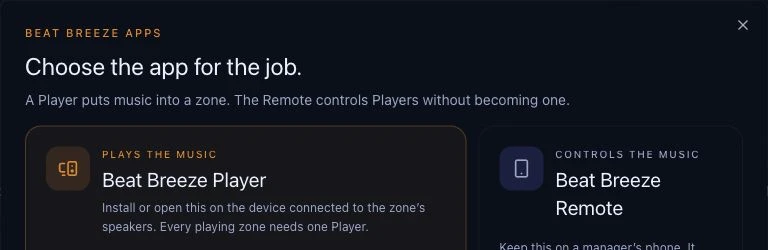
The panel separates Beat Breeze Player, which sends music to speakers, from Beat Breeze Remote, which controls an existing Player.
Choose an installed Player app first
Choose Mobile apps for an iPhone, iPad, or Android venue device, or Windows app for a venue PC. Use the Web Player only when an installed app is unavailable or when the browser setup is intentional and temporary.
Install the Player on the device physically connected to the zone's speakers. Do not use a manager's everyday phone as the permanent audio source.
Install the mobile Player from the official store
On a dedicated iPhone, iPad, Android phone, tablet, or venue player device, select Mobile apps and open the App Store or Google Play listing. Install Beat Breeze Player, then open it on the venue device.
The mobile Player includes background audio, downloaded playback, and lock-screen controls for venue use.
Install the Windows Player from Microsoft Store
On the venue PC, select Windows app and open the official Microsoft Store listing. Install Beat Breeze Player and keep the PC powered, signed in to its venue profile, and connected to the intended sound output.
Use a stable venue PC rather than a staff laptop that leaves the site. Confirm audible playback through the actual amplifier and speakers after pairing.
Pair the installed app to the correct zone
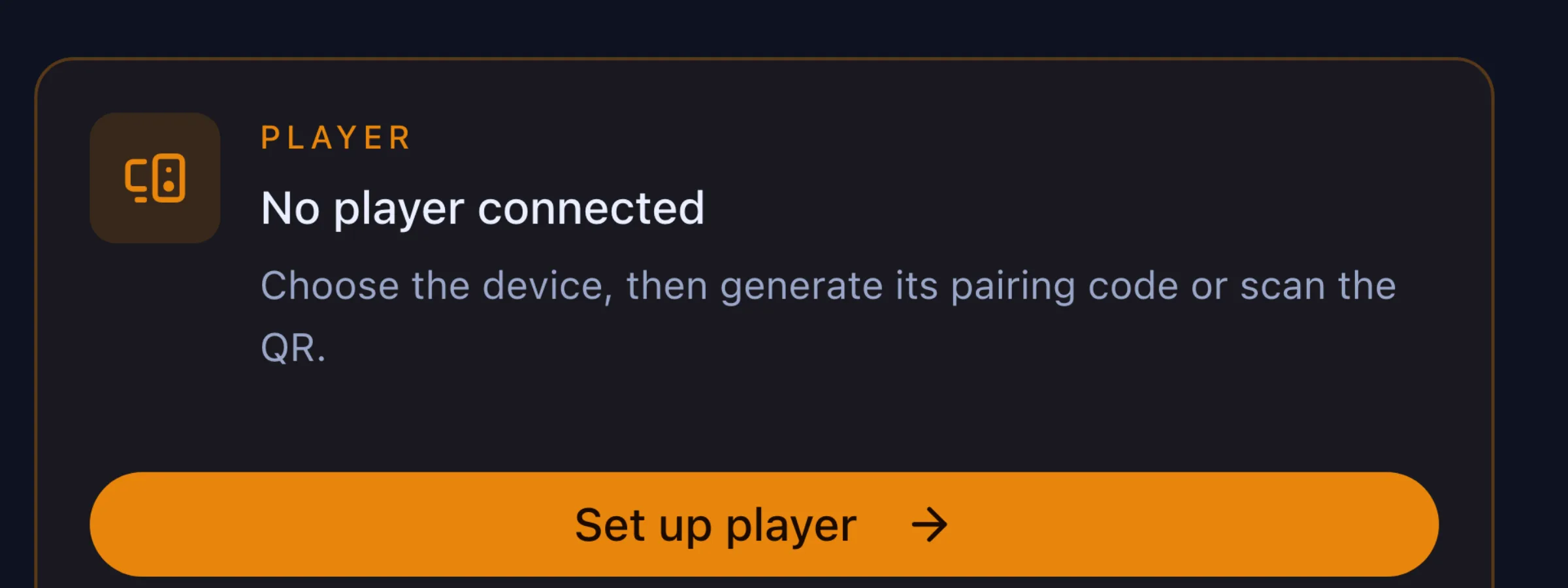
Return to Locations, select the intended zone, and choose Set up player. Choose the same platform as the venue device, then follow the Player app's pairing screen.
Beat Breeze generates one single-use code and a matching QR for that zone. Enter the code in the app or scan the QR, then wait for the connection confirmation.
Confirm the app and dashboard agree
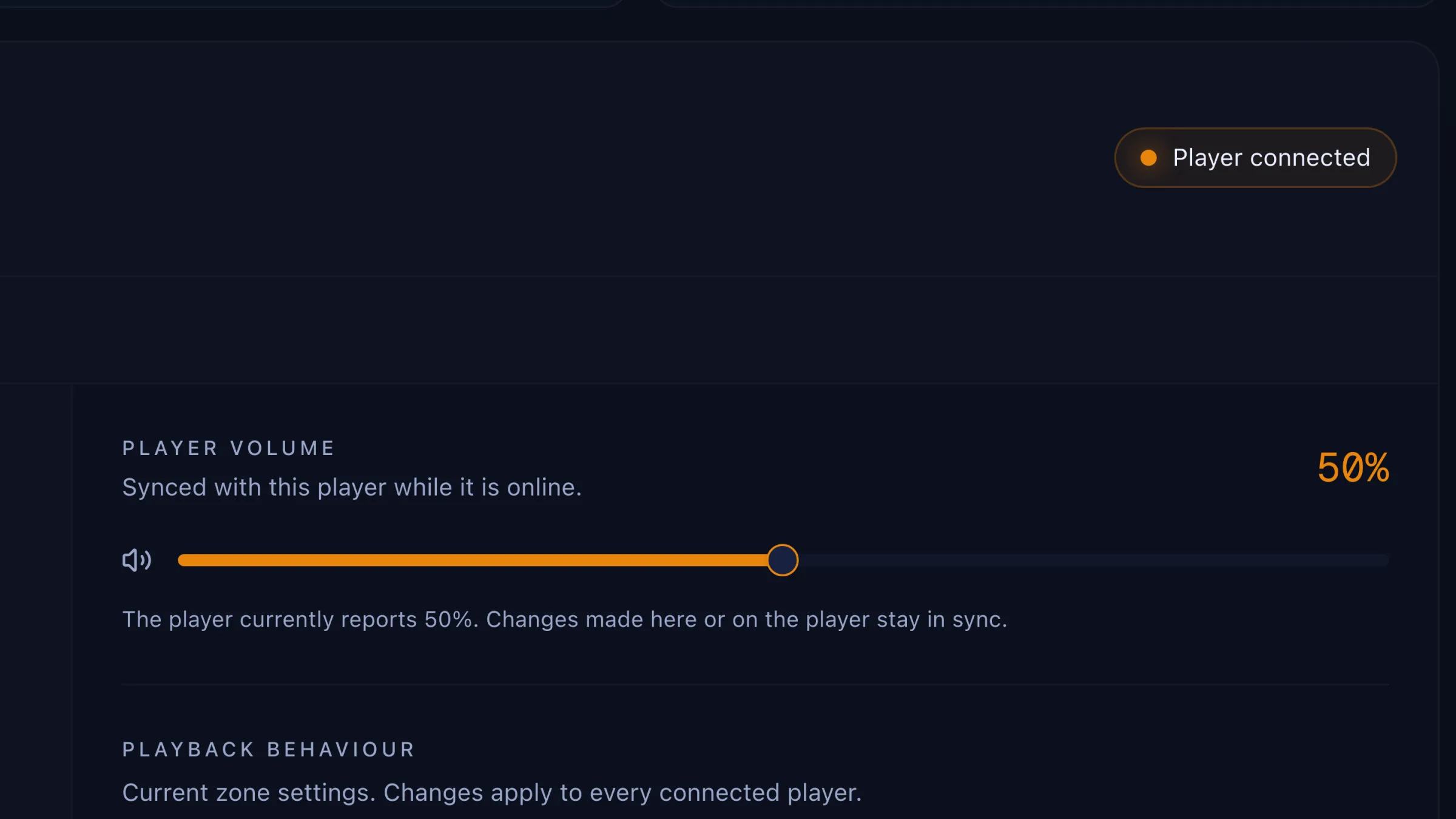
The Player app should show the intended zone. In Locations, confirm that the same zone reports Player connected and that the expected music and volume controls are available.
Finally, listen in the physical room. A connected status confirms the app link, but the amplifier, speaker input, schedule, and volume still determine whether the room is audible.
Confirm it worked
What success looks like
- An installed iOS, Android, or Windows Player is used when the venue device supports it.
- The Player app and Locations show the same intended zone.
- The room is audibly playing through the venue sound system.
- Managers use Remote only for zones they are permitted to control.
- Venue playback does not depend on a manager keeping a phone nearby.
Troubleshooting
Which Beat Breeze app should I install on iPhone or iPad?
Install Beat Breeze Player on the venue device connected to the speakers. Install Beat Breeze Remote only on a manager device that will control an existing Player.
The Player app is hard to find in the store
Open Locations and choose Get the apps. Use the official store button from Beat Breeze instead of searching by name.
The pairing code is rejected
The code may already have been used. Return to the intended zone, create a new single-use code, and enter it only on the venue device you want to pair.
The app connects but the room is silent
Confirm music is assigned, the zone is inside its schedule, Player volume is above 0%, and the venue device is connected to the correct amplifier input.
Tell us what is happening in your venue
Include the location, zone, player type, and the last step you completed. That gives our support team a useful starting point.
Contact Beat Breeze support